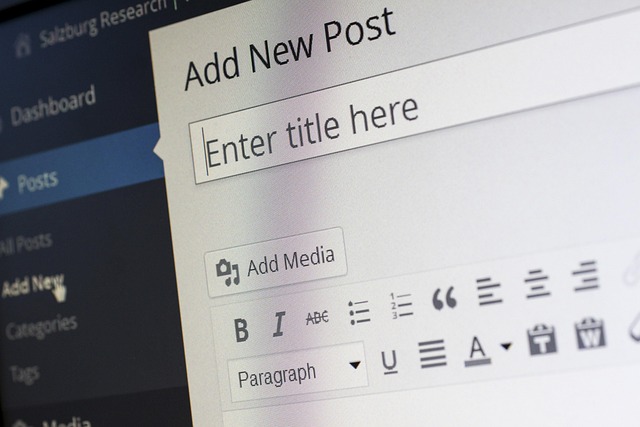
Mastering the WordPress Admin Interface: Tips for Ultimate Efficiency
WordPress, one of the most popular content management systems (CMS) in the world, has a powerful admin interface designed to help users manage their websites efficiently. However, many users don’t explore the full potential of the WordPress admin dashboard. In this article, we will delve into essential tips and tricks to help you master the WordPress admin interface and enhance your productivity.
Understanding the WordPress Admin Interface
The WordPress admin interface, also known as the dashboard, is the control center for your website. It is where you create and manage content, customize settings, and install plugins and themes. Taking the time to familiarize yourself with this interface can significantly improve your workflow.
The Dashboard Overview
When you log into your WordPress admin area, you are greeted with the dashboard. It provides a snapshot of your site’s activity and content. Key components of the dashboard include:
- At a Glance: Overview of your posts, pages, and comments.
- Activity: Recent comments and posts.
- Quick Draft: A simple tool for jotting down ideas for posts.
- WordPress Events and News: Updates on WordPress itself.
Customizing Your Dashboard Experience
One of the first steps to master the WordPress admin interface is customizing your dashboard experience. WordPress allows you to modify the layout, remove unnecessary widgets, and add essential ones that make sense for your workflow.
Removing Unnecessary Widgets
Having too many widgets on your dashboard can clutter the interface and distract you. To remove unnecessary widgets:
- Navigate to the top right corner of the dashboard.
- Click on the “Screen Options” tab.
- Uncheck the boxes of any widgets you do not want to display.
Adding Useful Widgets
You can enhance your WordPress experience by adding widgets that matter to your workflow. Some effective widgets to consider include:
- Yoast SEO: For monitoring SEO performance.
- Google Analytics: To track user engagement.
- Site Health: To keep track of your site’s performance.
Effective Content Management
Content creation and management are at the heart of the WordPress platform. Learning how to navigate the content management features efficiently can save you a lot of time.
Using the Block Editor
The Gutenberg block editor is a powerful tool for creating visually engaging posts and pages. To master it, familiarize yourself with the following:
- Block Types: Learn to use different block types such as paragraphs, headings, images, and galleries.
- Reusable Blocks: Create reusable blocks for content you want to use frequently across different posts.
- Keyboard Shortcuts: Use keyboard shortcuts for faster editing (e.g., Ctrl + B for bold).
Categorization and Tagging
Proper categorization and tagging of your posts not only makes your site organized but also boosts its SEO. Follow these tips:
- Create Categories: Use categories to group similar content types.
- Use Tags Wisely: Tags help in refining search queries and internal linking.
Boosting Site Performance
A key part of the WordPress admin interface is optimizing your website’s performance. There are several important tasks that can be done directly from the admin interface to ensure your site runs smoothly.
Managing Plugins
Plugins extend the functionality of your WordPress site. To maximize their efficiency:
- Regular Maintenance: Keep your plugins updated to avoid security vulnerabilities.
- Deactivate Unused Plugins: This speeds up your site and reduces clutter.
Cleaning Up the Database
A cluttered database can slow down your website. Use plugins like WP-Optimize to clean up revision history and spam comments. Regular maintenance can significantly improve loading times and overall user experience.
Streamlining User Management
If you are managing a team, taking control of user roles and permissions through the admin interface is crucial.
Assigning User Roles
WordPress allows different user roles such as administrator, editor, author, and subscriber. Here’s how to manage user roles effectively:
- Add New Users: Go to Users > Add New to invite members.
- Modify Permissions: Assign roles that fit the responsibilities of each user.
Regularly Review User Access
Make it a practice to regularly review user access to ensure only authorized personnel have access to sensitive areas of your site.
Using the Help Section and Resources
WordPress has a robust support community and extensive documentation available within the admin interface. Utilize these resources:
Exploring the Help Tab
At the top right of the admin screen, you will find a Help tab. Use this to:
- Access in-context help documentation tailored to your current screen.
- Learn about specific features and improvements.
Join the WordPress Community
Consider engaging with the extensive WordPress community through forums, social media, and meetups for additional support and tips.
Conclusion
Mastering the WordPress admin interface is a journey that requires practice and exploration. By implementing the tips outlined in this article, you can boost your productivity and efficiency while managing your WordPress site. Remember to customize your dashboard, manage your content and plugins effectively, and leverage the resources available to you. Master these tools, and you’ll transform how you interact with your website, making the most of what WordPress has to offer.
posted by Emad Zedan on 20 Jan 2026 in Uncategorized